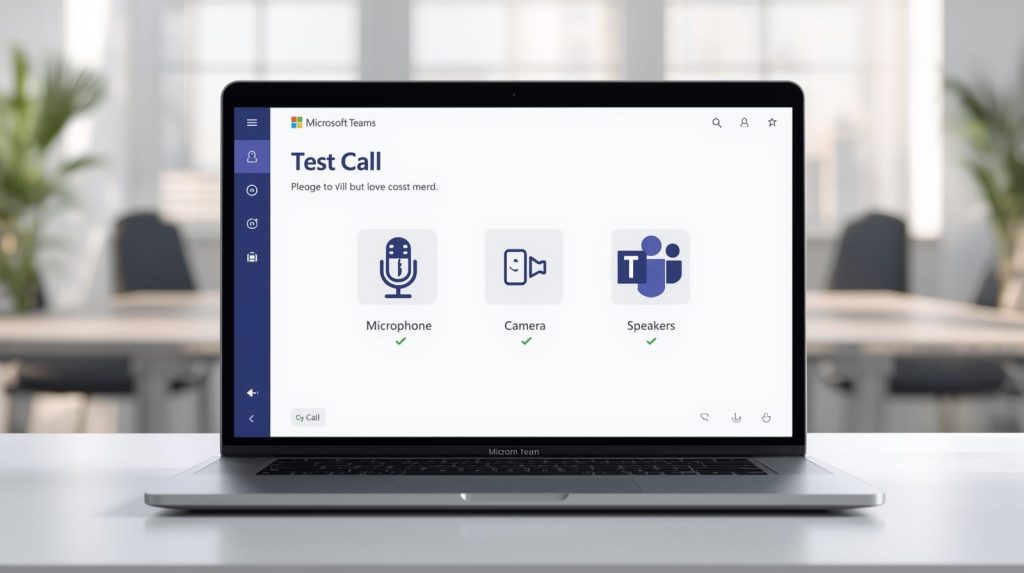
With remote and hybrid work becoming more common now, ensuring both of you can hear and see each other clearly on calls is important for communication. The Microsoft Teams test call is a service that you can use to make sure your mic, speaker, and camera are working properly before you join a meeting or call in Teams. It’s an easy step to avoid technical problems and maintain professional interactions.
This one-stop guide gives you a complete, detailed walkthrough on how to conduct a Microsoft Teams test call in addition to other valuable information, such as requirements, issues& fixes, and replacements. Whether Teams is for work, school, or personal use, becoming an expert when it comes to this feature will certainly make your life a whole lot easier.
Also Read: How to Skip Microsoft Account Setup in Windows 11
Why Do a Test Call for Microsoft Teams?
It’s a good idea to test your Microsoft Teams test call whenever you switch to a new device or update the application, as well as if you’re having any audio/video trouble. The test connects you to an automated sounding bot, which records a small message and plays it back for you so that you can check the quality of sounds, echo levels & image. The recording is deleted by Microsoft immediately after the call to protect your privacy.
Usefulness of the feature:
- Preparing for meetings or presentations.
- Investigating network or hardware problems.
- Verifying tool settings for new software updates.
Requirements to Be Able to Test Call
In order to test the Microsoft Teams test call feature, make sure you.
- Use the desktop. application for Windows or Mac (Note: this feature is not available on the web version and mobile app).
- Sign in with a work or school account (a business/education subscription probably includes this option; free personal ones might not).
- For the best performance, update to the latest Microsoft Teams.
- Grant Teams permission to your devices’ microphones and camera through device settings.
The following, then continue to the steps below:
Step-by-Step Guide to Making a Microsoft Teams Test Call
Here are simple steps for how to make a Microsoft Teams test call.
- Launch Microsoft Teams: Launch the desktop app and log in with your account.
- To access your settings: Select your profile picture at the top of the screen. Click on Settings from the dropdown.
- On the Settings panel: Click on Devices. Click on Devices (or device settings in some versions). This area lists your current microphone, speaker, and camera settings.
- Select Make a Test Call: Go to the audio or microphone and find the link that says Make a test call. If you haven’t used this before, Teams will automatically join you to the Test Call Bot (real name is Echo bot).
- Follow the Bot Instructions: You’ll know when the bot is ready for you by a little chime. Say a short message when you’re told to do so. The bot saves your voice and plays it back after ringing twice. Listen and carefully check for clarity, echo, or any distortion.
- Review the Summary: Following the playback, Teams presents a summary of test results with device performance measurements. If you want to make edits, you can do so right on this screen.
- End the call: The call ends automatically. Your recording will be erased, and there won’t be any data stored.
This process usually takes less than 2 minutes, and you’ll have instant feedback on your configuration.
Troubleshooting Common Issues During a Microsoft Teams Test Call
If you can’t complete or there are issues with the Microsoft Team test call, try these steps:
- No “Make a test call” option: You need to be using the desktop app and have a licensed account. This is not available in the free personal account.
- No sound while playing: Check the volume, update drivers, or try another set of headphones.
- Camera preview issues: Ensure that permissions for camera/screen record are authorized, and the correct device has been selected in settings.
- Echo or distortion: Turn noise suppression on in audio settings, or try using headphones.
For persistent issues, restart Teams or your device, and try signing in with a different browser or app version.
Alternatives for When the Test Call Option is Unavailable
If the Microsoft Teams test call isn’t available (e.g., free accounts or web versions of Teams), use these workarounds:
- Create a “Meet Now” meeting in Teams and join by yourself to see the audio/video preview.
- Search for the “Echo/Sound Test Service” bot (legacy from Skype) in the Teams search bar and start a chat/call.
- Start a private meeting on your calendar and test yourself by joining from another device.
These techniques give approximately the same verification, without the bot.
Frequently Asked Questions (FAQs) About Microsoft Teams Test Call
What’s a test call in Microsoft Teams?
By default, the Microsoft Teams test call connects you to an automated bot for testing your microphone and speakers. It records your voice and replays it for you to judge the call quality.
Can you use the Microsoft Teams test call on mobile or web?
No, it is not available on the Windows and Mac OS desktop apps. Alternatives like “Meet Now” meetings are needed for Web and mobile versions.
Can I use the Microsoft Teams test call with a free personal account?
The feature is generally limited to work or school (business/education) accounts. Free users may have to resort to workarounds like creating their own meetings or using legacy bots.
What if I receive an echo in my Microsoft Teams test call?
Noise Reduction, Headphones or Mic Sensitivity to High under Device settings.
Doing a Microsoft Teams test call will have you ahead in communication and keep disruptions at bay. If you need additional help with Microsoft Teams features, refer to official documentation or assistance resources.
How long does a test call last in Microsoft Teams?
The test duration recording and playback take about 30–60 s.
Is the test call I make saved after a Microsoft Teams test call?
No, Microsoft deletes the recording as soon as you end your call for privacy reasons.
Can I test video during a Microsoft Teams test call?
Yes, it does have a video preview, so you could at least test your camera with audio.